
That black screen with a blinking cursor can be intimidating at first. But it is, by far, one of the most direct and powerful tools you will use throughout your life as a developer.
Why the terminal still matters
Graphical interfaces are comfortable, and there is nothing wrong with using them. The problem is that they limit you: you can only do what a button allows. In the terminal, it is the other way around—you type exactly what you want, and the computer executes it.
In practice, this gives you three advantages. Speed, because one command can do what would take ten clicks on screen. Automation, because what you type today can become a script tomorrow. And reach, because many things—deployments, git, servers, and developer tools—simply do not have a polished interface; they live on the command line.
Shells, commands, arguments, and flags
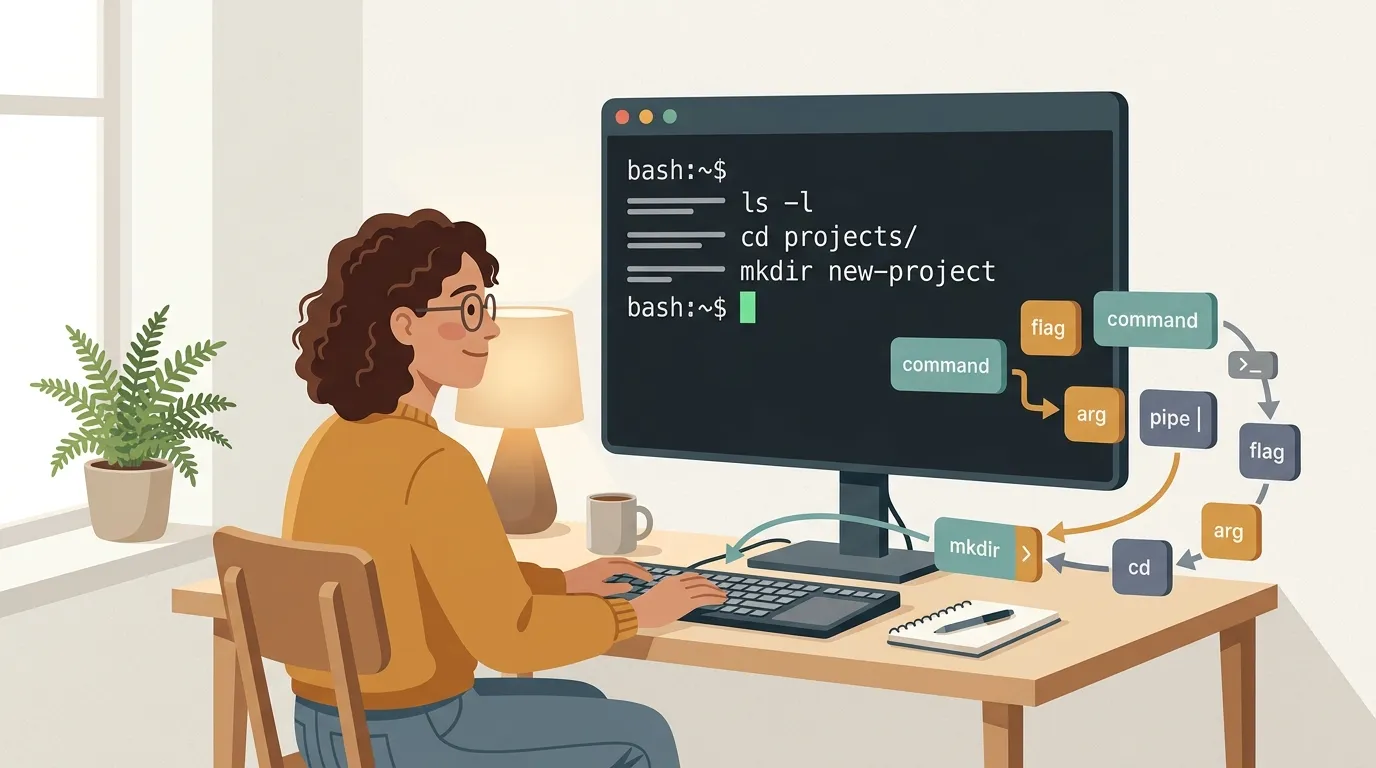
The shell is the program that waits for you to type and translates your input into action. The most common ones are Bash and Zsh. The text before the cursor—the prompt—is the shell telling you, "go ahead, I’m listening."
A command always has the same anatomy:
bash ls -l /home/you
Here, ls is the command (list files), -l is a flag (an option that changes the behavior—in this case, showing details), and /home/you is the argument (the target, or where the command will act). That is all: a command, flags to adjust it, and arguments to specify what it should act on. Every command follows this logic.
Where you are: PATH and navigation
The terminal always places you inside a folder. Three commands will take care of things here:
bash pwd # shows which folder you are in ls # lists what is in it cd # moves into another folder
One thing that confuses beginners: when you type git or python, how does the shell know where that program lives? Through the PATH variable—a list of folders that the shell searches for the command. If something returns "command not found" even though it is installed, it is almost always because its folder is not in the PATH. Remember that name; it will come back to haunt you later.
Pipes and redirection: the CLI superpower
This is where the terminal beats a GUI hands down. Each command does one thing well, and you connect them.
The pipe (|) takes the output of one command and passes it as the input to the next:
bash ls -l | grep .pdf
This lists the files and passes the list to grep, which filters out everything that does not contain ".pdf". Two simple commands become a useful search.
Redirection, on the other hand, sends the output to a file instead of the screen:
bash ls > list.txt # creates (or overwrites) the file with the result ls >> list.txt # appends to the end without deleting what was already there
When these two concepts click, you stop seeing isolated commands and start building small pipelines.
Everyday commands
You do not need to memorize hundreds of them. A handful handles 90% of everyday work:
cdandls— move through folders and see what is therecpandmv— copy and move (or rename) filesrm— delete files (be careful: they do not go to the trash; they are gone for good)cat— print a file’s contents on the screengrep— search for text inside filesfind— locate files by name or typemkdir— create folders
Start by actually using these in your project. Memory comes from practice, not memorization.
Habits that make you faster
Three habits separate people who struggle from those who fly through the terminal:
Use Tab. Type the first few letters and press Tab—the shell completes file and command names for you. Less typing means fewer naming mistakes.
Use the up arrow. It brings back the last commands you ran. Repeating something takes one keypress instead of starting over.
Ask the command itself for help. Almost all commands accept --help, and man command opens the complete manual. Before turning to Google, ask the tool.
The terminal is not some seven-headed monster—it is a place where the computer finally does exactly what you tell it to do. Open yours, run ls, and start getting used to it. Within a week, it will stop being intimidating and become your fastest tool.